








 Contact Platform Support
 Help Center
Torque Test Bench for Electric Valve Actuators



Related Products
-
 Factory Performance Testing of Rock Bolt Drill Test BenchNegotiableMOQ: 0 Unit
 -
Comprehensive Performance Test of Tractors, Haibo HuaNegotiableMOQ: 0 Set
-
High-speed Motor Test BenchNegotiableMOQ: 0 Unit
-
Special Torque Sensor for Teaching, Dedicated for Motor Testing and Reducer Test BenchUS$ 553.85 - 569.23MOQ: 1 Set
-
Dynamic Torque Sensor, Motor Testing, Reducer Torque and Speed Sensor, Beijing HaibohuaUS$ 553.85 - 569.23MOQ: 1 Unit
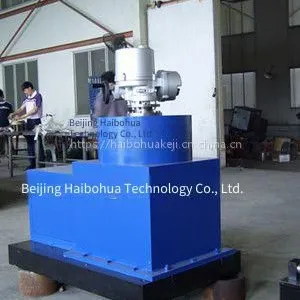
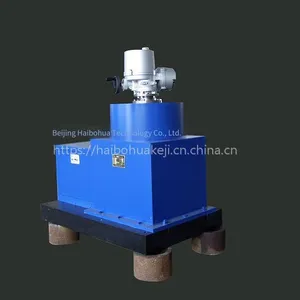
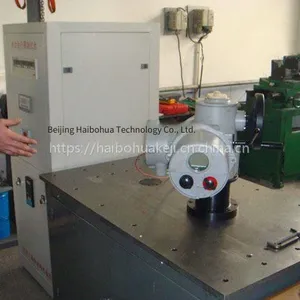
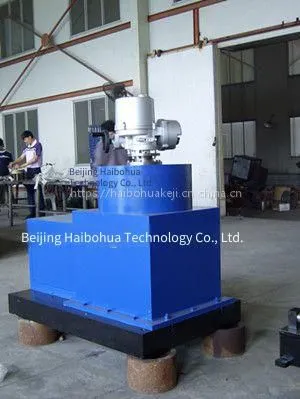
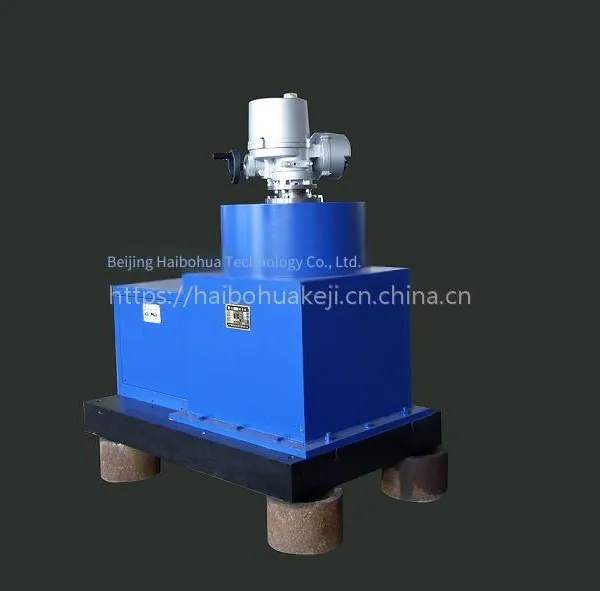
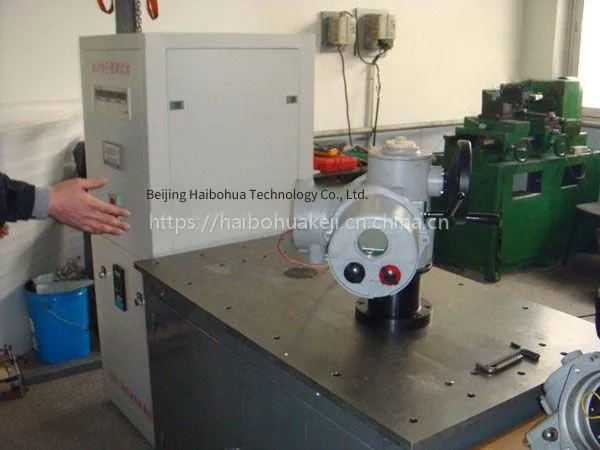
Beijing Haibohua Technology Co., Ltd.The valve electric device torque test bench produced by consists of two parts: an actuator test bench and software. It can measure the input current, voltage, output torque, rotational speed, power and other parameters of various electric actuators in real - time.
Our company's actuator test benches come in two types: vertical installation actuator test benches and horizontal installation actuator test benches.
Vertical test benches are mostly used for heavy - duty actuators. It is convenient to hoist the actuator onto the workbench of the test equipment through hoisting devices. The vertical test bench needs to convert the vertically input power into horizontal output through a commutator. There is a gap in the commutation output. When the actuator reverses after reaching the dead point in the forward rotation, there is a small - angle idle stroke that cannot be loaded.
Horizontal test benches are mostly used for light - duty actuators. For convenient installation, a screw rod advancing and retreating mechanism is installed on the actuator installation fixture, which makes it easy to push the actuator into the test station for detection and easily withdraw it from the test station after the test is completed.
Functions
(1) It can simulate the loading of the actuator, and the loading torque is continuously adjustable.
(2) It can detect the forward and reverse output torque of the actuator at different rotational speeds of the servo motor.
(3) It can store the test data.
(4) It can automatically and continuously store the test curves or manually store them according to the user's wishes.
(5) It has a memory function for the setting of various parameters, and only needs to be input once.
(6) It has the function of replaying historical data curves.
(7) It can export the test data and curves, and can print the data and curves of the test results through a printer.
(8) The entire function of the system has dual operations of menu and shortcut keys.
(9) It runs in the WINDOWS environment, and the interface is vivid and beautiful.
(10) The operation is simple, and the maintenance is convenient.
Software operation
Run the "Valve Torque Characteristic Measurement System" program on the program menu. After the system initialization is completed, you can enter the main window of the program, and the measured values will be displayed in real - time. If the system connection is incorrect, a connection failure prompt message will appear. At this time, you must carefully check the installation and connection of the system hardware driver until it is completely correct.
Software Usage
1. View of the Main Window of the Measurement System
The main window has four pages: "Measurement and Data Collection", "Measurement Curve", "Historical Data", and "Historical Curve". You can switch between pages by clicking the corresponding buttons on the toolbar with the mouse.
2. Conducting the Measurement
After entering the main window of the program, the system starts measuring, and the measurement parameter values will be displayed in real-time. If you need to collect data, click the "Continuous Collection" or "Manual Collection" button. When the "Continuous Collection" button is pressed, the system can collect data at the time interval set by the user (which can be modified by the user as needed) until the "Automatic Collection" button is pressed again to stop automatic collection. When the "Manual Collection" button is pressed, the system collects the angle and torque values once. The measured and collected data and curves can be displayed on the "Measurement and Data Collection" and "Measurement Curve" interfaces.
3. Setting of Test Parameters
Click the "Setting of Test Parameters" button to enter the test parameter setting state. You can set a series of parameters. After setting, click the "OK" button, and the system will automatically save the settings. Until the next modification, click the "Cancel" button, and the parameters will return to those before this setting. The test date item is the current date of the system and does not need to be set. The test parameters are part of the test report.
4. Zeroing Operation of Angle and Torque
When you need to zero the torque and angle parameters, click the "Zero" button. At this time, this point will be used as the zero point. Click the "Cancel" button, and the torque and angle will return to the zero point calibrated at the factory. Generally, do not zero the torque parameter.
5. Operation of Historical Data or Curves
Click the "View Historical Data" or "View Historical Curve" button, and a dialog box will pop up to select the historical data or curve file. The historical data or curve files are stored in the data storage directory set by the user. After selecting the opened historical data or curve file, you can view the historical measurement data or curves on the "Historical Data" or "Historical Curve" screens.
6. Operation of angle and torque peak value
During the test collection process, the angle and torque peak values will be displayed in real-time. Click the "Clear Peak" button to reset the peak values to zero, and then restart measuring the angle and torque peak values. The measured peak values are those during the period until the next click of the "Clear Peak" button or the entire current collection process.
7. Operation of the menu
In the window operation of the menu, you can choose to display the window and the measurement curve, and select the automatic switching and stop of automatic switching of the measurement and collection data display window. The time interval for automatic switching is 2s. Other items in the menu are consistent with the button operations.
8. Export of measurement data reports and curves
Click the buttons "Output Data" and "Output Curve" to export the measured data and curves to EXCEL and WORD files.
When exporting the measurement data and curves, a data and curve output selection window will pop up. Complete the operation as needed.
9. Export test report
Click the button "Export Test Report", a dialog box will pop up. Select the data file of the test report to be exported, choose the file, and then export the test report.
10. Exit the program
In the main window view of the measurement system, click the "Exit System" button on the main program toolbar, a confirmation window will pop up. After confirmation, you can exit this program.
Software interface

Send Inquiry to This Supplier


You May Also Like
-
Pneumatic Motor Test Bench, Hydraulic Motor Test Bench, Beijing HaibohuaUS$ 2769.23 - 2923.08MOQ: 1 Set
-
Chb Force Value Display and Control Instrument, Haibo HuaNegotiableMOQ: 0 Unit
-
Which Torque Sensor is Used for Stirring? Axial Installation Torque Sensor Specially Designed for the Stirring Industry, Haibo HuaUS$ 584.62MOQ: 1 Piece
-
Special for Beijing Haibohua Hcnj - 102, Double - Flange Static Torque Sensor Actuator Test BenchUS$ 184.62 - 200MOQ: 1 Piece
-
Wlk-3a Controller Switch Type With Magnetic Powder Brake and Eddy Current Brake, Using Haibo HuaUS$ 169.23MOQ: 1 Unit
-
Beijing Display Instrument Multi-channel Thermal Meter Xsd2, Manufacturer: Haibo HuaNegotiableMOQ: 0 Unit
-
Small Torque Sensor for Electric Motors, Small-range Dynamic Torque SensorUS$ 692.31 - 723.08MOQ: 1 Piece
-
Single-channel Thermal Instrument With High Precision Xse, Beijing HaibohuaNegotiableMOQ: 0 Unit
-
Xsw Single-channel Thermal Instrument Display Meter, Manufactured by Beijing HaibohuaNegotiableMOQ: 0 Unit
-
Ch6 Single-channel Thermal Instrument by Beijing HaibohuaNegotiableMOQ: 0 Unit


