








 Contact Platform Support
 Help Center
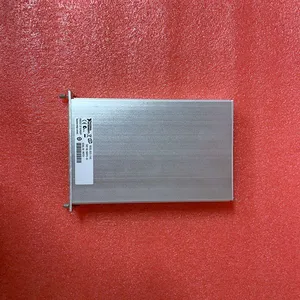
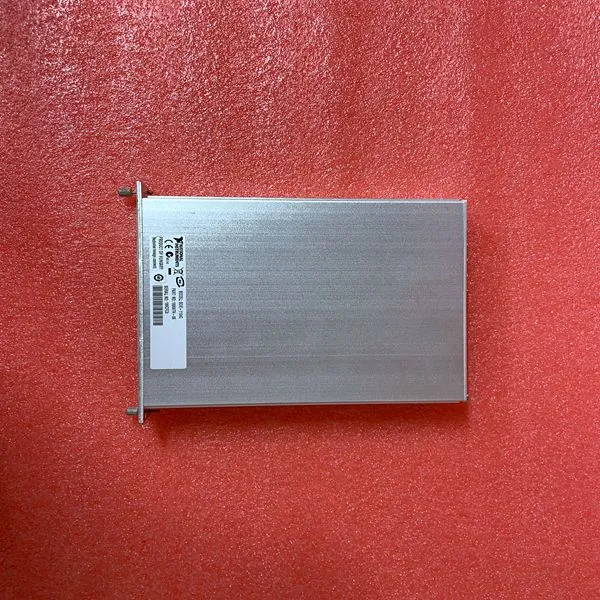
NI SCXI-1104C


Related Products
Brand:NI
Type:SCXI-1104C
Origin: the United States
Warranty: 365 days
Colour: new/used
Shipping method: Courier delivery
Spare parts spare parts, the main DCS control system of PLC system and the robot system spare parts,
Brand advantage: Allen Bradley, BentlyNevada, ABB, Emerson Ovation, Honeywell DCS, Rockwell ICS Triplex, FOXBORO, Schneider PLC, GE Fanuc, Motorola, HIMA, TRICONEX, Prosoft etc. Various kinds of imported industrial parts
Configuring the MVI69E-MBS Using PCB ProSoft Configuration Builder (PCB) provides a quick and easy way to manage module configuration files customized to meet your application needs. You build and edit the module’s configuration in ProSoft Configuration Builder. You use PCB to download the configuration file to the CompactLogix or MicroLogix 1500-LRP processor, where it is stored in the MBS.CONFIG controller tag generated by the previously exported AOI. See Creating and Exporting the .L5X File (page 24). When the MVI69E-MBS module boots up, it requests the processor to send the configuration over the backplane in special Configuration Blocks. See the chapter Adding the Module to RSLogix (page 14) for the procedures to create a new PCB project and export a .L5X file for the processor. This chapter describes the module configuration parameters in detail, as well as how to download the configuration to the processor using PCB. 3.1 Basic PCB Functions 3.1.1 Creating a New PCB Project and Exporting an .L5X File Please see the chapter Adding the Module to RSLogix (page 14). 3.1.2 Renaming PCB Objects You can rename objects such as the Default Project and Default Location folders in the tree view. You can also rename the Module icon to customize the project. 1 Right-click the object you want to rename and then choose RENAME. 2 Type the new name for the object and press Enter.
 3.1.3 Editing Configuration Parameters 1 Click the [+] sign next to the module icon to expand module information. 2 Click the [+] sign next to any icon to view module information and configuration options. 3 Double-click any icon to open an Edit dialog box. To edit a parameter, select the parameter in the left pane and make your changes in the right pane. Note: Depending on the parameter, you must enter text, or a valid number, or select from a list of options. 4 Click OK to save your changes. 5 Double-click any icon to open an Edit dialog box with a table. Use this dialog box to build and edit Modbus Master commands.

Send Inquiry to This Supplier


You May Also Like
-
60WKS-CE240/22PBUS$ 1113 - 2023MOQ: 1 Piece
-
60WKS-M240/22US$ 1113 - 2023MOQ: 1 Piece
-
CB06561 PRD-B040SSlz-62US$ 1158 - 2058MOQ: 1 Piece
-
KOLLMORGEN S20660-SRSUS$ 1164 - 2064MOQ: 1 Piece
-
ILS1B853S1456US$ 1164 - 2064MOQ: 1 Piece
-
140ACI03000US$ 1165 - 2065MOQ: 1 Piece
-
140ACO13000US$ 1165 - 2065MOQ: 1 Piece
-
140AMM09000US$ 1165 - 2065MOQ: 1 Piece
-
140CHS11000US$ 1165 - 2065MOQ: 1 Piece
-
140CPS11100US$ 1165 - 2065MOQ: 1 Piece


