








 Contact Platform Support
 Help Center
Home > Health & Medicine > Dental Equipment & Supplies > Dental Consumables > UNIVERSAL 6360D SMTpart
UNIVERSAL 6360D SMTpart
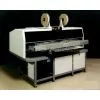
Negotiable
MOQ: 1 Piece (Price negotiable depending on order volume and customization)
Key Specifications
Get Latest Price
Business Type:
Trading Company
Total Employees:
101 - 200 People
Main Markets:
North America, South America, Eastern Europe
Payment & Shipping
Payment Methods:


Port of Shipment:
China
Delivery Detail:
7 days
Related Products
| Insert Array | |||||
| Use the Insert Array option to insert a series of like components equidistant from one another at the same time. This option is only available when a new component insertion is being defined. It cannot be used with an existing or altered component insertion. | |||||
| To insert an array of components: | |||||
| 1 | |||||
| Select the Component menu bar heading. | |||||
| 2 | |||||
| Select the New menu option to clear the data fields. | |||||
| 3 | |||||
| Enter the reference ID, component ID, X position, Y position, theta, (hole span and depth stop for axial machines) for the first component in the array. Do NOT push the [Enter] key. | |||||
| 4 | |||||
| Select the Options menu bar heading. | |||||
| 5 | |||||
| Select the Insert Array menu option. The Place Array dialog box is displayed. | |||||
| 6 | |||||
| In the X Number field, enter the number of components in the X di-rection of the array including the one currently defined in the insertion list data fields. | |||||
| 7 | |||||
| In the Y Number field, enter the number of components in the Y di-rection of the array including the one currently defined in the insertion list data fields. | |||||
| 8 | |||||
| In the X Increment data field, enter the distance between each com-ponent in the array in the X direction. | |||||
| 9 | |||||
| In the Y Increment data field, enter the distance between each com-ponent in the array in the Y direction. | |||||
| Example: To create an array of 6 insertions as shown in the graphic, 3 in the X direction and 2 in the Y direction, enter values as follows. | |||||
| 10 | |||||
| Select OK. If the data is acceptable, the new component insertions are displayed in the insertion list. The Product Editor assigns numeric ref-erence IDs to the component insertions. | |||||
| Database Information | |||||
| Use the Database Information option to open the component database win-dow and display the component definition for the selected component. This option is not available unless a component insertion is selected from the in-sertion list. This is a quick way of viewing the component definition. | |||||
| Refer to the New Component module for information on component defini-tions or to the Component Database module for information on the workings of the database. | |||||
| Mini Data Sheet | |||||
| When the Mini Data Sheet option is active (indicated by a checkmark on the pulldown menu), an interactive graphic is displayed in the window. By se-lecting a line of data, the following information is displayed for the selected component. | |||||
| . | |||||
| Component ID | |||||
| . | |||||
| Component graphic at 0° rotation | |||||
| . | |||||
| Type (category) | |||||
| . | |||||
| Length | |||||
| . | |||||
| Width | |||||
| . | |||||
| Height | |||||
| . | |||||
| Number of Leads | |||||
| . | |||||
| Lead Diameter | |||||
| . | |||||
| Hole Span | |||||
| This gives you a quick overview of the component without having to enter the component database. | |||||
| To display the mini data sheet: | |||||
| 1 | |||||
| Select a component insertion from the insertion list. | |||||
| 2 | |||||
| Select the Options menu bar heading. | |||||
| 3 | |||||
| Select the Mini Data Sheet menu option. The Mini Data Sheet for the selected component is displayed (Inductor/Coil-Ax shown in the example). | |||||
| Update Depth Stop (axial products only) | |||||
| Use the Update Depth Stop option to reset the depth stop values to the origi-nal computed depth stop values. This option is useful for the following rea-sons. | |||||
| . | |||||
| Tooling on the machine has been changed and the machine configuration has been updated. | |||||
| . | |||||
| IMC patterns have been imported from an older machine type. | |||||
| Exit | |||||
| Select Exit to close the Insertion List window. | |||||
| Changes To This Revision | |||||
| New part number. | |||||
| Pg 15-16: Added to the following control descriptions; X Pos, Y Pos, Find Hole, | |||||
| Update, and Move to Hole, a sentence indicating the control is disabled until an | |||||
| insertion is selected. | |||||
| Table of Contents | |||||
| Introduction ................................................................................................................................................................... 1 | |||||
| The Window ........................................................................................................................................................ 1 | |||||
| Component .................................................................................................................................................................... 3 | |||||
| New ...................................................................................................................................................................... 4 | |||||
| Insert .................................................................................................................................................................... 5 | |||||
| Alter ..................................................................................................................................................................... 6 | |||||
| Delete ................................................................................................................................................................... 6 | |||||
| Copy ..................................................................................................................................................................... 7 | |||||
| Select All ............................................................................................................................................................. 8 | |||||
| DeSelect All ......................................................................................................................................................... 8 | |||||
| Select Invalid ....................................................................................................................................................... 8 | |||||
| Recover From Invalid Insertion ................................................................................................................. 9 | |||||
| Print .................................................................................................................................................................... 10 | |||||
| Sort .............................................................................................................................................................................. 10 | |||||
| Entry Order ........................................................................................................................................................ 10 | |||||
| Component ID ................................................................................................................................................... 10 | |||||
| Reference ID ...................................................................................................................................................... 10 | |||||
| Search .......................................................................................................................................................................... 10 | |||||
| Search and Replace Controls ............................................................................................................................. 11 | |||||
| Options ........................................................................................................................................................................ 12 | |||||
| Teach Insertions ................................................................................................................................................. 13 | |||||
| Insertion List Window ............................................................................................................................. 13 | |||||
| Correct an Insertion in an Existing Product With BEC ........................................................................... 17 | |||||
| Generate a New Insertion With BEC ....................................................................................................... 19 | |||||
| Correct or Define the Machine Reference With BEC ............................................................................. 21 | |||||
| Update an Insertion in an Existing Product Without BEC ...................................................................... 23 | |||||
| Generate a New Insertion Without BEC.................................................................................................. 24 | |||||
| Insert Array ........................................................................................................................................................ 26 | |||||
| Database Information ........................................................................................................................................ 27 | |||||
| Mini Data Sheet ................................................................................................................................................. 27 | |||||
| Update Depth Stop (axial products only) .......................................................................................................... 28 | |||||
| Exit .............................................................................................................................................................................. 28 | |||||
| Changes To This Revision .......................................................................................................................................... 29 | |||||
| Insertion List Insertion ListInsertion ListInsertion List Insertion List | |||||
| Insertion List | |||||
| 47139707 Rev. - | |||||
| 12-99tln | |||||
| Insertion List Insertion ListInsertion ListInsertion List Insertion List | |||||
| Insertion List | |||||
| 47139708 Rev. A | |||||
| 9-01tln | |||||
| Table of Contents | |||||
| Introduction ................................................................................................................................................................... 1 | |||||
| The Window ........................................................................................................................................................ 1 | |||||
| Component .................................................................................................................................................................... 4 | |||||
| New ...................................................................................................................................................................... 4 | |||||
| Insert .................................................................................................................................................................... 6 | |||||
| Alter ..................................................................................................................................................................... 6 | |||||
| Delete ................................................................................................................................................................... 7 | |||||
| Copy ..................................................................................................................................................................... 7 | |||||
| Select All .............................................................................................................................................................. 8 | |||||
| DeSelect All ......................................................................................................................................................... 8 | |||||
| Select Invalid ....................................................................................................................................................... 9 | |||||
| Recover From Invalid Insertion ................................................................................................................. 9 | |||||
| Print .................................................................................................................................................................... 10 | |||||
| Sort .............................................................................................................................................................................. 10 | |||||
| Entry Order ........................................................................................................................................................ 11 | |||||
| Component ID.................................................................................................................................................... 11 | |||||
| Reference ID ...................................................................................................................................................... 11 | |||||
| Search .......................................................................................................................................................................... 11 | |||||
| Search and Replace Controls ............................................................................................................................. 12 | |||||
| Options ........................................................................................................................................................................ 13 | |||||
| Teach Insertions ................................................................................................................................................. 14 | |||||
| Insertion List Window .............................................................................................................................. 14 | |||||
| Correct an Insertion in an Existing Product With BEC ........................................................................... 18 | |||||
| Generate a New Insertion With BEC ....................................................................................................... 19 | |||||
| Correct or Define the Machine Reference With BEC .............................................................................. 21 | |||||
| Update an Insertion in an Existing Product Without BEC ....................................................................... 23 | |||||
| Generate a New Insertion Without BEC .................................................................................................. 25 | |||||
| Insert Array ........................................................................................................................................................ 26 | |||||
| Database Information ......................................................................................................................................... 27 |

Send Inquiry to This Supplier

* Email
Want the best price?
Post an RFQ now!
Business Type
Trading Company
Total Employees
101 - 200 People
Main Markets
North America, South America, Eastern Europe
Location
Baoji, Shaanxi, China
You May Also Like
-
 Professional Portable Teeth Whitening Led LightUS$ 1 - 280MOQ: 1 Set
 -
Multifunctional Dental Equipment Dental Care Teeth Whitening MachineNegotiableMOQ: 1 Unit
-
OraTek Power Tooth Stain Remover and Tooth WhitenerUS$ 1.8 - 3.99MOQ: 1 Unit
-
Tooth Whitening KitNegotiableMOQ: 1 Piece
-
Toothpick With HolderUS$ 0.06 - 0.1MOQ: 10 Cartons
-
Finger Teeth Whitening WipeUS$ 0.04 - 0.05MOQ: 1000 Pieces
-
Huge Dental Sonning Full Set Acrylic Denture TeethNegotiableMOQ: 1 Box
-
Luma Smile Tooth Polisher Electric Tooth PolisherUS$ 1.3 - 1.5MOQ: 1
-
Pink Oral Care Sponge Swab for Bed-Bound, Elderly, Disabled, Post-Operative, And Icu PatientsNegotiableMOQ: 1000 Packs
-
Portable Dental Oral Water Irrigators Dental Floss Water Flosser Pick for Teeth IrrigationUS$ 1 - 100000MOQ: 1 Piece

