








 Contact Platform Support
 Help Center
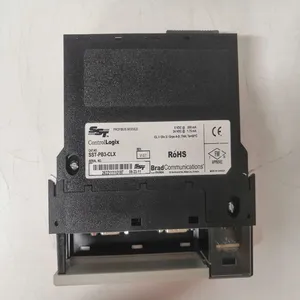
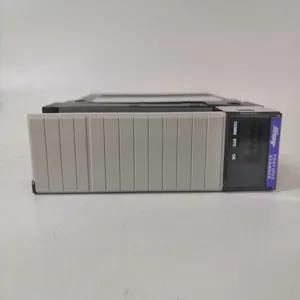
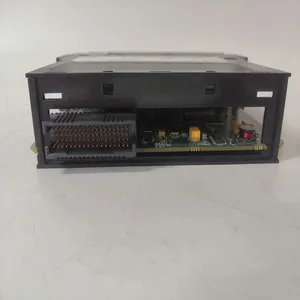
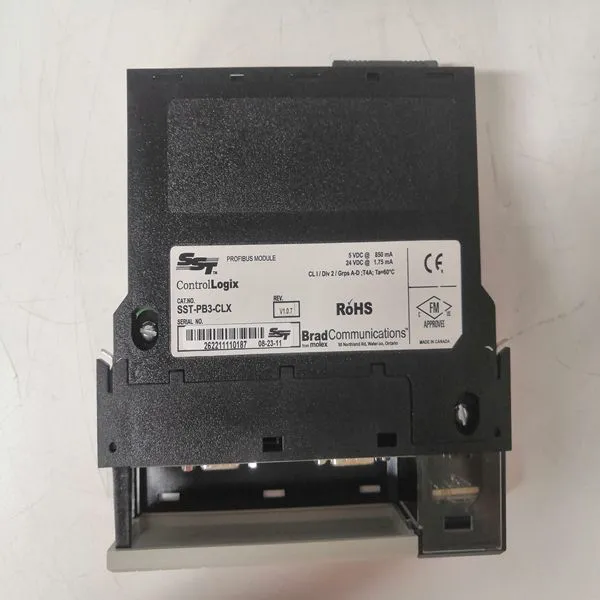
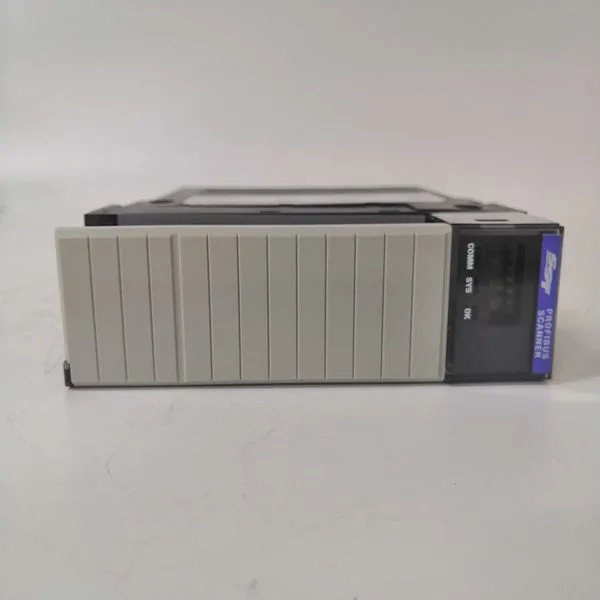
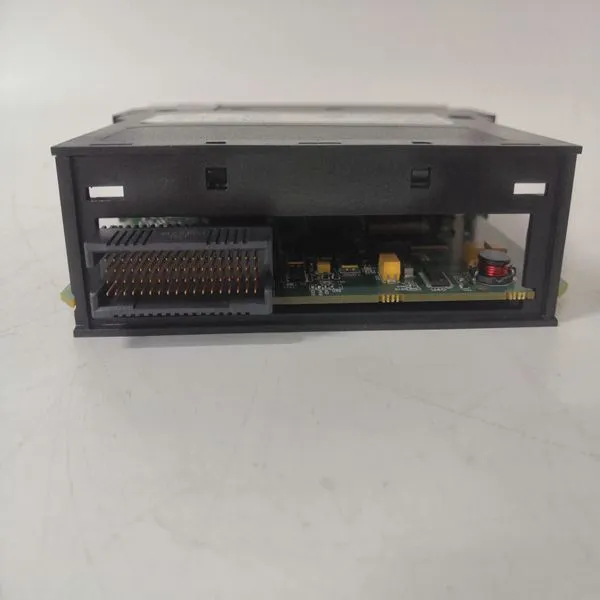
SST-PB3-CLX


Related Products
Brand: SST
Type:SST-PB3-CLX
Origin: the United States
Warranty: 365 days
Colour: new/used
Select the various options for chipsets located in the system (for example, the CPU configuration and configurations for the North and South Bridge). The settings for the chipsets are processor dependent and care must be used when changing settings from the defaults set at the factory. Below is a sample of the Chipset Setup screen; the actual options on your system may vary. NOTE: Changes in this screen can cause the system to malfunction. If problems are noted after changes have been made, reboot the system and access the BIOS. From the Exit menu select ‘Load Failsafe Defaults’ and reboot the system. If the system failure prevents access to the BIOS screens, refer to Chapter One for instructions on clearing the CMOS.Setting wrong values in below section may cause system to malfunction. ¾ Intel Montara NorthBridge Configuration ¾ Hance Rapids SouthBridge Configuration ¾ CPCI (HINT HB6) Bridge Configuration ¾ Lan (8254EB) Port Routing OptionsSelect the Exit tab from the ezPORT setup screen to enter the Exit BIOS Setup screen. You can display an Exit BIOS Setup option by highlighting it using thekeys. The Exit BIOS Setup screen is shown below. 002.53 (C) Copyright 1985-2002, American Megatrends, Inc. If changes have previously been made in the BIOS and the system malfunctions, reboot the system and access this screen. Select ‘Load Failsafe Defaults’ and continue the reboot. BIOS SETUP UTILThe VMIVME-7807/VME-7807RC include an Argon BIOS option which allows the SBCs to be booted from a network. This appendix describes the procedures to enable this option and the Argon BIOS Setup screens.There are two methods of enabling the Argon BIOS option.
 The first method is the First Boot menu. The second is the Boot menu from the BIOS Setup Utility. First Boot Menu Press F11 at the very beginning of the boot cycle, which will access the First Boot menu. Selecting “Managed PC Boot Agent (MBA)” to boot from the LAN in this screen applies to the current boot only, at the next reboot the VMIVME-7807/VME-7807RC will revert back to the setting in the Boot menu. Using the arrow keys, highlight Managed PC Boot Agent (MBA), and press the ENTER key to continue with the system boot. Boot Menu The second method of enabling the Argon BIOS option is to press the DEL key during system boot. This will access the BIOS Setup Utility. Advance to the Boot menu, and to the Boot Device Priority sub-menu. Use the arrow keys to highlight the Managed PC Boot Agent (MBA) option. Repeat entering

Send Inquiry to This Supplier


You May Also Like
-
AIP830-111US$ 1013 - 2024MOQ: 1 Piece
-
5SHX1445H0002 3BHL000387P0101US$ 1015 - 2025MOQ: 1 Piece
-
KOKUSAI CXP-544A KOMS-A2US$ 1016 - 2027MOQ: 1 Piece
-
PFTL101B 5.0KN 3BSE004191R1US$ 5016 - 5027MOQ: 1 Piece
-
MPL-B540K-SJ24AA/AUS$ 1016 - 2027MOQ: 1 Piece
-
PFTL101A 1.0KN 3BSE004166R1US$ 1100 - 2010MOQ: 1 Piece
-
BENTLY 125760-01US$ 1100 - 2010MOQ: 1 Piece
-
BENTLY 125768-01US$ 1100 - 2010MOQ: 1 Piece
-
BENTLY 136719-01US$ 1100 - 2010MOQ: 1 Piece
-
BENTLY 3500/20 125744-02US$ 1100 - 2010MOQ: 1 Piece


