








 Contact Platform Support
 Help Center
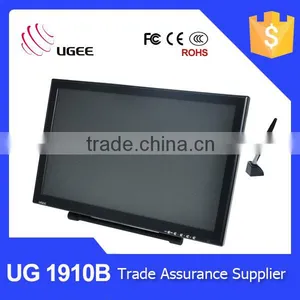
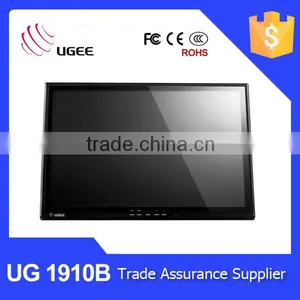
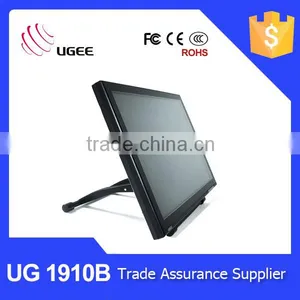
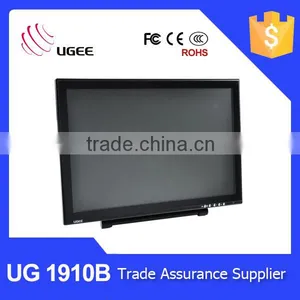
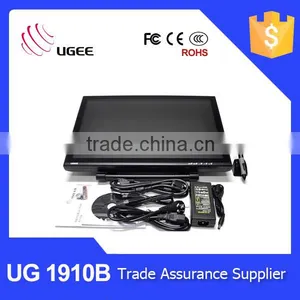
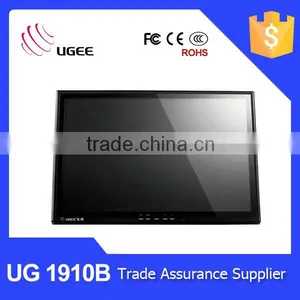
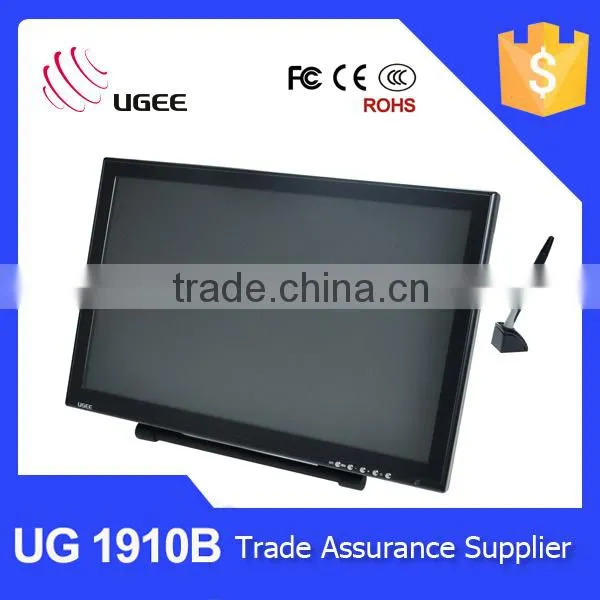
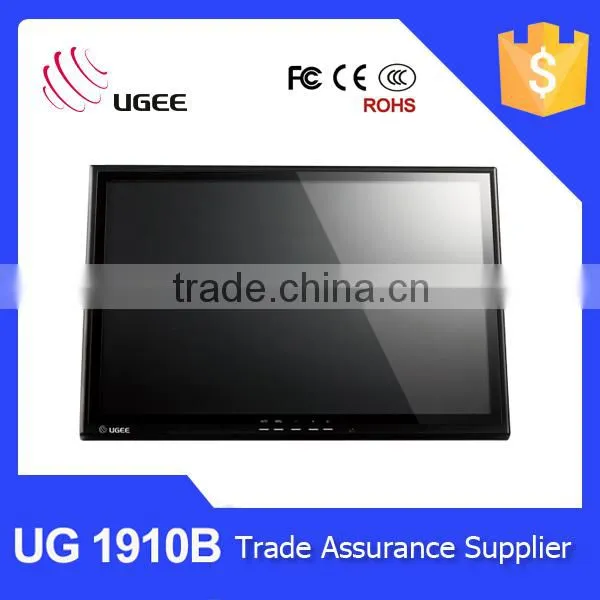
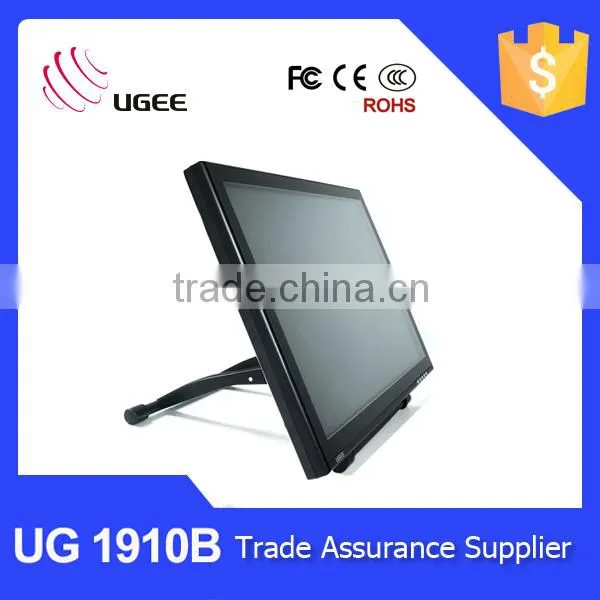
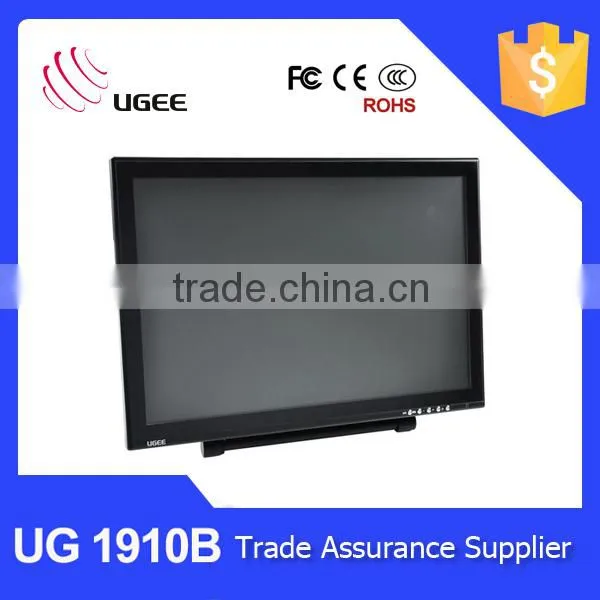
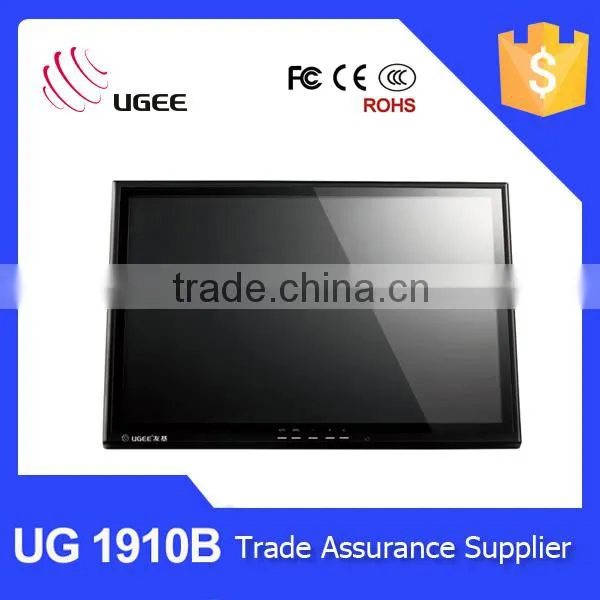
Ugee UG1910B 19 Inch Interactive Graphic Tablet Monitor


Related Products
-
 Ugee UG2150 HD Resolution Pen Display IPS MonitorUS$ 1 - 520MOQ: 1 Piece
 -
Ugee UG1910B 19 Inch Graphics Monitor With Digital Pen Quality ChoiceUS$ 1 - 34MOQ: 1 Piece
-
Ugee UG2150 Graphic Monitor With HD ResolutionUS$ 1 - 520MOQ: 1 Piece
-
Ugee UG2150 HD Resolution IPS Graphic Touch Screen MonitorUS$ 1 - 520MOQ: 1 Piece
-
Ugee UG1910B 19'' Pen Tablet Drawing MonitorUS$ 1 - 34MOQ: 1 Piece
Ugee UG1910B 19 inch interactive graphic tablet monitor
Pretty appearance, excellent pressure sensitivity,
and quick report rate tool for designer and artisit
Product Pictures
19 inches, large screen
Interface Support
Adjustable frame, can adjust any angle
Specification
| Mode | UG1910B |
| Product | interactive pen display |
| Technology | Electromagnetic Digitizer |
| Active Area | 402mm x 255 mm |
| Resolution | 5080 LPI |
| Pressure Sensitivity | 1024 levels |
| Report Rate | 220RPS |
| Reading Height | 15mm |
| Accuracy | 0.25mm |
| Response Time | 5m/s |
| Pixel Pitch | 0.294mm(per on triadH)x 0.294mm(V) |
| Competible System | Windows 8/Win7/Vista/XP/Mac OS 10.4/10.6.0 |
| Interface Support | USB Port 1.1 |
| Pen | P50S |
| Pen Holder | Yes |
| USB Cable | Yes(150cm) |
| Color | Black |
| Dimennsion(L*W*H) | 446 X 295 X 60 mm |
Features
Applications
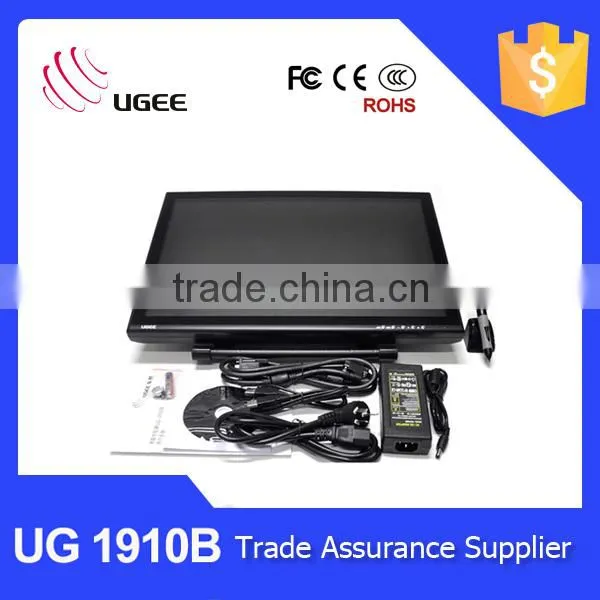
Packing Contents
Tablet Monitor, Pen, Pen Holder, Pen Tips, Charging Line, CD driver, USB cable, HDMI cable, English User Manual
Shippment
by air, by ship, by DHL, by UPS, by Fedex, by EMS or choose your own forwarders etc
1. We can provide 24 hours online to answer your questions.
2. We have professional after-sale service waiting for supply help.
3. We will check the products itself and the package carefully before making shippment.
4. Ensure the refund without reason within 7 days.
5. The warranty period is 1 year and the lifelong software support.
Ugee dedicates to professional solution for pen input devices
Factory picture
Certificates approved
Q. How can I get the update software?
A. You can download the new driver from our website---
Q. The tablet cannot work.How can I do?
1. Pls pull off the tablet’s USB plug from the computer.
2. Remove the Tablet driver form the system.
3. Re-connect the Tablet’sUSB to the computer.
4. You can download the latest version of driver directly from our website ---
5. After installing the new version of driver, the system will require you to restart your
computer.
6. After restart your computer, on bottom right of the screen, you can find the tablet
icon within there.
6.1 If you can’t find the tablet icon on the bottom right of the screen, it means the
driver fail in startup.It might caused by an incompatible issue.
6.2 Check form [My computer]→[Properties]→[Hardware]→[Device Manager], if there
is an exdamation mark occurs,it means the installed driver of tablet is
incompatible with the windows stystem.If you have this problem, pls contact us for
more service.
7. By clicking the tablet icon on the bottom right of the screen, you can test the
pressure sensitivity to see whether the pen pressure function works or not.
If you have any requirement, please don't hesitate to contact me

Send Inquiry to This Supplier

You May Also Like
-
2711P-K15C4A2 Allen-Bradley Panelview Plus 1500 15.1 InchNegotiableMOQ: 1 Piece
-
Gunze 7X04 Compatible Touch ScreenNegotiableMOQ: 1 Piece
-
15 Inch Touch Screen HD Monitor Split Screen TFT Lcd MonitorUS$ 660 - 1,999MOQ: 1 Set
-
G0049 Set of 80 Multi Action Indoor Outdoor Bright White LED LightsUS$ 3.02 - 4.52MOQ: 2000 Sets
-
12.1" SVGA Open Frame Touch Screen Embedded LCD Monitor (LCD Module)NegotiableMOQ: 1 Set
-
Custom Made Touch Screen Monitor UNLCD20047 Quality Choice Most PopularUS$ 0.10 - 0.50MOQ: 1 Piece
-
Tablet pc 10 Inch Capacitive Touch Screen New Technique SensorUS$ 1 - 20MOQ: 3000 Pieces
-
STM32 Development Board Core Board /STM32F407VGT6 Minimum System Board M4 168MHzUS$ 20 - 100MOQ: 1 Piece
-
Touchscreen 3D Display With Ultra-high-definition Dynamic 3D Effect LCD MonitorUS$ 2920 - 3000MOQ: 1 Piece
-
Interactive Plat Panel Dispiay 65/75/86/98inch.Used for Teaching School Interactive Smart Board Interactive PanelUS$ 360 - 1100MOQ: 1 Piece


