








 Contact Platform Support
 Help Center
Home > Health & Medicine > Dental Equipment & Supplies > Dental Consumables > UNIVERSAL 4797L SMTpart
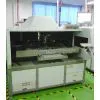
UNIVERSAL 4797L SMTpart
Negotiable
MOQ: 1 Piece (Price negotiable depending on order volume and customization)
Key Specifications
Get Latest Price
Business Type:
Trading Company
Total Employees:
101 - 200 People
Main Markets:
North America, South America, Eastern Europe
Payment & Shipping
Payment Methods:


Port of Shipment:
China
Delivery Detail:
7 days
Related Products
| . | ||||||||
| Use the Select All Components option | ||||||||
| . | ||||||||
| Use the Conditional Select option | ||||||||
| 2. From the Graphic window: | ||||||||
| Edit > Change Selected Components | ||||||||
| The Change Selected dialog box is displayed. | ||||||||
| TECHNICAL PUBLICATIONS | ||||||||
| Graphic 47139902 Rev. B | ||||||||
| Options 3. Enter the appropriate data in the Change String data fields. 4. Select OK. The selected components are adjusted according to the pa-rameters defined in the Change String data fields. 5. A confirmation message is displayed. Select Yes to change the se-lected components. Use the Options menu bar heading to access additional features in the Graphic window. The following features are available. . Zoom In . Zoom Out . Zoom Increment . Select Draw Components . Find Insertion . Mini Data Sheet . Show Insertion Path . Adjust Product Reference . Print Zoom In The Zoom In feature makes the board appear closer, displays less area of the board, and displays more detail. Refer to the Zoom Increment topic later in this module. To zoom in push [F7] or use the following procedure: 1. Select a zoom increment. From the Graphic window: Options > Zoom Increment From the pulldown menu select the desired zoom increment value. | ||||||||
| TECHNICALP UBLICATIONS | ||||||||
| 47139902 Rev. B Graphic | ||||||||
| 2. From the Graphic window: Options > Zoom In The display changes to match the zoom parameters. Zoom Out The Zoom Out feature makes the board appear farther away, displays more area of the board, and displays less detail. Refer to the Zoom Increment topic later in this module. To zoom out push [F8] or use the following procedure: 1. Select a zoom increment. From the Graphic window: Options > Zoom Increment From the pulldown menu select the desired zoom increment value. 2. From the Graphic window: Options > Zoom Out The display changes to match the zoom parameters. Zoom Increment Use the Zoom Increment option to define the amount of enlargement or re-duction of the board graphic. For example, if the Zoom Increment is 50%, selecting the Zoom In option brings the graphic 50% closer than its current view. A secondary pulldown menu allows percentages of 10, 20, 50 or 100 to be selected. To change the view of the board, Zoom In or Zoom Out must be selected af-ter a zoom increment is selected. Select Draw Components Use the Select Draw Components option to designate specific component type(s) to be displayed in the graphic. Those components that are not desig-nated are displayed as outlines only. This is useful for quickly viewing one component or only a few components in the graphic. The more components selected, the longer it takes for the screen to redraw. To select draw components: 1. From the Graphic window: Options > Select Draw Components | ||||||||
| TECHNICAL PUBLICATIONS | ||||||||
| Graphic 47139902 Rev. B | ||||||||
| The Select Draw Components dialog box is displayed. By default, all components are selected to be drawn. Therefore, unless previously ad-justed, the dialog box displays all components selected. 2. While holding the [Ctrl] key down, select and deselect component(s) as desired. Selected components are displayed in the graphic; deselected components appear as outlines only. 3. Select OK. The graphic is updated accordingly. In the following sample, the four components at the lower right of the graphic are se-lected as draw components. The remaining components are displayed as outlines only. Find Insertion Use the Find Insertion option to identify a specific component insertion by reference ID in the graphic. To find a component insertion: | ||||||||
| TECHNICALP UBLICATIONS | ||||||||
| 47139902 Rev. B Graphic | ||||||||
| 1. From the Graphic window: Options > Find Insertion The Find Insertion dialog box is displayed. 2. Select a reference ID from the Insertions list box. 3. Select OK. The graphic is adjusted as necessary to display a four-headed cursor over the selected component insertion. Mini Data Sheet Use the Mini Data Sheet option to display a quick overview of a component in the graphic without having to enter the component database. The follow-ing information is displayed. . Component ID . Component graphic at 0° rotation . Type (category) . Length . Width . Height . Number of leads To display the mini data sheet: 1. From the Graphic window: Options > Mini Data Sheet | ||||||||
| TECHNICAL PUBLICATIONS | ||||||||
| Graphic 47139902 Rev. B | ||||||||
| A checkmark is visible in front of the menu option. As the cursor is moved over a component in the graphic, a mini data sheet is displayed for that component. It is not necessary to select a component to display the mini data sheet. The following sample is for component electro-lytic-axial. . Rectangular components show length, width and height. . Circular components show diameter. . Clipped circular components show diameter and width. . Radial components show number of leads and lead span. Show Insertion Path Use the Show Insertion Path option to show the order in which components are inserted by the machine. This feature is useful for manually optimizing the product. When Show Insertion Path is selected, all components are cleared from the board display. The components are then displayed in the actual order that the machine would insert them. A line connects the components as they are displayed to make it easier to follow the sequence. To pause the display, push [Ctrl+S]. To resume the display, push [Ctrl+Q]. As Show Insertion Path is performed, a cost value is displayed at the right side of the status bar. This value is a cumulative value and is updated as each component is displayed. This cost value is for comparison purposes only. The lower the value, the faster the product should run. | ||||||||
| TECHNICALP UBLICATIONS | ||||||||
| 47139902 Rev. B Graphic | ||||||||
| For example, to determine the difference between a non-optimized product and the same product after optimization, first perform Show Insertion Path before optimizing. Record the cost value. Then optimize the product. Perform Show Insertion Path again. When complete, compare the cost value with the cost value from the unoptimized product. The optimized cost value should be less. Use the Insert Delay Interval in the Configuration dialog box of the Prod-uct Editor window to regulate the speed of displaying the insertion path. The Insert Delay Interval does not affect the machine performance, it only makes it easier to view the path. The following is a sample showing a partially completed insertion path. Note the cost value of 32.14 in the status bar. Adjust Product Reference The product reference is the distance from the lower left corner of the board to the location from which the X and Y values are measured. Refer to the Product Reference topic in the Product Editor module for details. The product reference may need to be adjusted for a product created by im-porting an IMC pattern or CAD file. Do not change the product reference in an attempt to improve machine insertion performance. Changing (or defining) the product reference only affects how the components are displayed with respect to the board in the Graphic window display. | ||||||||
| Graphic 47139902 Rev. B | ||||||||
| To adjust the product reference, refer to the Define the Product Reference topic in the Product Tasks module. | ||||||||
| Use the Print option to print the graphic exactly as it appears in the window to the default printer. | ||||||||
| Exit | ||||||||
| Select Exit to close the Graphic window. | ||||||||
| Changes To This Revision | ||||||||
| Update to rev. B. | ||||||||
| Pg 1: Updated illustration, Added paragraph about circuits under The Window topic. | ||||||||
| Pg 16: Added Adjust Product Reference topic. | ||||||||
| Introduction | ||||||||
| Use the Graphic window to graphically manipulate component insertions on the board or view components in detail. | ||||||||
| The Window | ||||||||
| The Graphic window displays a graphical representation of the production board. The difference between the Graphic window and the Overview win-dow which also graphically displays the board, is that the Graphic window contains a Zoom utility and the ability to actually manipulate the component insertions. The Overview window does not. | ||||||||
| Use the Zoom feature to view the board in less or more detail. This is done by zooming in (more detail) or out (less detail). The Zoom utility is covered in detail in other areas of this module. When the Graphic window is opened, the board is displayed at the same zoom factor as when the window was closed. | ||||||||
| Circuits are displayed in light yellow. Offsets associated with those circuits are displayed in gray. A green pie slice in the corner of a circuit or offset in-dicates the reference zero of the circuit. For example, in the previous illustra-tion, reference zero for circuit 1 and offset 3 is in the lower left corner. Refer-ence zero for circuit 2 and offset 4 is in the upper right corner indicating that the circuit/offset is rotated 180°. | ||||||||
| Components are displayed in the graphic window as follows. | ||||||||
| . | ||||||||
| Polarized components are displayed with the appropriate polarity mark. Note the "E" on the transistor and the "+" on the diode. | ||||||||
| . | ||||||||
| Components for steps that are invalid are displayed in red. | ||||||||
| . | ||||||||
| Components for steps that are bypassed are displayed in dark red. | ||||||||
| . | ||||||||
| Components for steps that are set to no continuity are displayed in blue. | ||||||||
| . | ||||||||
| Components for steps that are set to ignore continuity are displayed in pink. | ||||||||
| Components can be manipulated in the Graphic window as follows. | ||||||||
| . | ||||||||
| Move the cursor over a component insertion and push the left trackball button to select the component. When a component insertion is selected using this method, it is officially marked and can then be cut, copied, moved, or changed. Select the Edit menu bar heading. Menu options are displayed. Refer to the specific menu items later in this module for details. | ||||||||
| . | ||||||||
| Move the cursor over a component and double-click the left trackball button. The Steps window is automatically opened and the selected component is highlighted. | ||||||||
| . | ||||||||
| Move the cursor over a component insertion and push the right trackball button. A toolbox is displayed. | ||||||||
| - | ||||||||
| #NAME? | ||||||||
| The toolbox displays the reference ID of the selected component insertion and its X and Y coordinates. | ||||||||
| The following functions can be performed by selecting buttons from the toolbox. | ||||||||
| #NAME? | ||||||||
| #NAME? | ||||||||
| -(Circuit only) Selecting this icon from the toolbox moves the selected insertion on the board. The X and Y coordinates displayed in the status bar at the top of the window reflect the current location of the component as it is moved. Select the right tra | ||||||||
| #NAME? | ||||||||
| -(Circuit only) Selecting this icon from the toolbox duplicates the selected component in succession. The duplicate component appears as a floating outline until it is positioned on the board. When this is done, another floating outline appears, and so on | ||||||||
| #NAME? | ||||||||
| #NAME? | ||||||||
| Additional functions can be performed from the toolbox by moving the cursor over board or circuit options (board error correction, bad board reject, or auto miss marker). | ||||||||
| The trash can icon, in the following toolbox displays, is only displayed when the cursor is over a board feature on the circuit, not on an offset of the circuit. | ||||||||
| -Selecting the BEC icon from the toolbox opens the Board (or Circuit) Error Correction dialog box (refer to the Board (Circuit) Error Correction topic in the Circuit List module). | ||||||||
| -Selecting the BBR icon from the toolbox opens the Bad Board Reject dialog box (refer to the Bad Board Reject topic in the Circuit List module). | ||||||||
| -Selecting the AMM icon from the toolbox opens the Automatic Miss Mark dialog box (refer to the Automatic Miss-Marker topic in the Circuit List module). | ||||||||
| Another aid in manipulating component insertions graphically is the status bar which is located just under the menu bar of the Graphic window. | ||||||||
| The status bar displays the following information. | ||||||||
| . | ||||||||
| X Coordinate: The X location of the cursor in the window at any given time. | ||||||||
| . | ||||||||
| Y Coordinate: The Y location of the cursor in the window at any given time. | ||||||||
| . | ||||||||
| Units: The measuring unit as defined in the Product Editor configuration. | ||||||||
| . | ||||||||
| Zoom: The current Zoom factor. Refer to the Zoom topics later in this module. | ||||||||
| . | ||||||||
| Target: the component insertion that the cursor is over. The target displays the reference ID and component ID of the component insertion. The insertion does not have to be selected in order for target information to be displayed. | ||||||||
| Edit | ||||||||
| Use the Edit menu bar heading to manipulate component insertion(s). The following options are available: | ||||||||
| . | ||||||||
| Cut | ||||||||
| . | ||||||||
| Copy | ||||||||
| . | ||||||||
| Move | ||||||||
| . | ||||||||
| Paste | ||||||||
| . | ||||||||
| Conditional Select | ||||||||
| . | ||||||||
| Select All Components | ||||||||
| . | ||||||||
| DeSelect All Components | ||||||||
| . | ||||||||
| Change Selected Components | ||||||||
| Cut | ||||||||
| Use the Cut option to delete a selected component insertion from the board while retaining the component in the buffer. The cut insertions can then be pasted into another location. This option is only available if one or more component insertions are selected on the board graphic. | ||||||||
| The insertion(s) remain in the buffer until one of the following actions occurs. | ||||||||
| . | ||||||||
| another Cut is made | ||||||||
| . | ||||||||
| a Copy is made | ||||||||
| . | ||||||||
| the current Product Editor session is closed | ||||||||
| To cut a component insertion from the board graphic: | ||||||||
| 1 | ||||||||
| . | ||||||||
| Select manually with the cursor | ||||||||
| . | ||||||||
| Use the Select All Components option |

Send Inquiry to This Supplier

* Email
Want the best price?
Post an RFQ now!
Business Type
Trading Company
Total Employees
101 - 200 People
Main Markets
North America, South America, Eastern Europe
Location
Baoji, Shaanxi, China
You May Also Like
-
 Professional Portable Teeth Whitening Led LightUS$ 1 - 280MOQ: 1 Set
 -
Multifunctional Dental Equipment Dental Care Teeth Whitening MachineNegotiableMOQ: 1 Unit
-
OraTek Power Tooth Stain Remover and Tooth WhitenerUS$ 1.8 - 3.99MOQ: 1 Unit
-
Tooth Whitening KitNegotiableMOQ: 1 Piece
-
Toothpick With HolderUS$ 0.06 - 0.1MOQ: 10 Cartons
-
Finger Teeth Whitening WipeUS$ 0.04 - 0.05MOQ: 1000 Pieces
-
Huge Dental Sonning Full Set Acrylic Denture TeethNegotiableMOQ: 1 Box
-
Luma Smile Tooth Polisher Electric Tooth PolisherUS$ 1.3 - 1.5MOQ: 1
-
Pink Oral Care Sponge Swab for Bed-Bound, Elderly, Disabled, Post-Operative, And Icu PatientsNegotiableMOQ: 1000 Packs
-
Portable Dental Oral Water Irrigators Dental Floss Water Flosser Pick for Teeth IrrigationUS$ 1 - 100000MOQ: 1 Piece

