








 Contact Platform Support
 Help Center
Wii to HDMI Converter Video Game Converter


Related Products
-
 Mini 1.3 Hdmi to Audio Converter With VgaUS$ 5.38 - 6.9MOQ: 100 Pieces
 -
av Hdmi Converter HDCP DecodeUS$ 18.46 - 21.5MOQ: 50 Pieces
-
Mini up Scaler 1080p av to Hdmi ConverterUS$ 7.69 - 10MOQ: 50 Pieces
-
Mini Hdmi Input to av Out Converter Support NTSC and PAL Two TV FormatUS$ 6.9 - 8.46MOQ: 100 Perches
-
CVBS FL/FR Adapter Hdmi to av Zoom ConverterUS$ 8.76 - 10.76MOQ: 100 Pieces
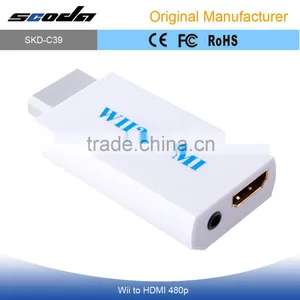
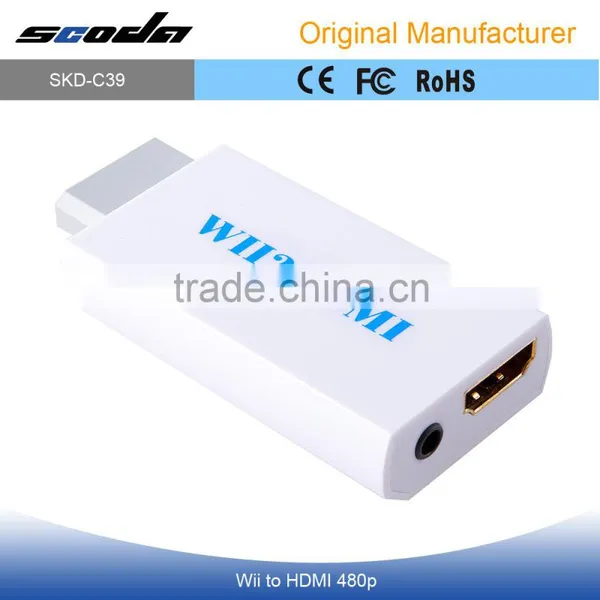
WII to HDMI Video game Converter
Introduction
Wii-LINK, a converter for the Wii console, outputs video and audio in full digital
HDMI format and supports all Wii display modes (NTSC 480i 480p, PAL 576i). With
just one HDMI cable, plug and play for true-to-life video/audio effects on your
TV/monitor.
Features
1. Video and audio in full digital HDMI format, no transmission loss!
2. Works with DVI monitor.
3. Hassle Free! Plug and play as you go.
4. Supports all Wii display modes (NTSC 480i 480p, PAL 576i).
5. Provides advanced signal processing with great precision. Colors, resolutions!
6. No power adaptor, no messy cords—just one HDMI cable.
Specification
Dimensions:34 x 73 x 14 mm Weight:15g
Power Consumption:below 2W
Supported Video input Mode:Includes all the display modes of the Wii console (480i, 480p, 576i)
Supported HDMI output Mode:
Outputs pure digital HDMI video/audio signals.
Input Connector:
Wii AV Multi Out Plug x 1
Output Connectors:
HDMI Connector x 1
3.5mm Stereo Audio Jack x 1
Setups for Connecting to a TV/Monitor with HDMI Input
1. Make sure that the Wii console is powered Off. Then insert the AV Multi Out Plug of
the Wii-LINK into the AV Multi Out Connector in the back of the Wii console.
2. Plug one end of the HDMI cable into the Wii-LINK HDMI output, and plug the other end to the HDMI input on the TV/monitor.
3. Turn on the TV/monitor and switch the video input of the TV to match the HDMI
input connector used by the Wii-LINK. Then you should be able to see the Wii screen after you turn on the Wii console.
Note: In order to obtain the best display quality, we strongly recommend that you set the Wii video output to 480p mode (progressive mode). For more details, please refer to the “Set the Wii Video Output to 480p Mode” section.
Set the Wii Video Output to 480p Mode
Under 480p mode, the image data is double what it is under the 480i mode. Therefore,
the 480p mode can provide you with much better display quality. In addition, as long as your TV/monitor has HDMI input, it is technically compelled to support the 480p mode; and even though most of the TVs/monitors support the 480i mode, it is not the usual standard. In conclusion, 480p is a better mode for higher display quality, as well as a better solution to avoid compatibility problems with TVs/monitors. Therefore, we
strongly recommend that when you use the Wii-LINK, you set the Wii video output to 480p mode. The detailed setups are as follows:
1. Make sure that the Wii console is powered off and that no disc is in the tray.
2. Power on the Wii console to reach the Wii Channel menu. Then, click on the "Wii"
button on the lower lefthand side.
3. On the next screen, select the “Wii Settings” on the right-hand side.
4. From the “Wii System Settings 1” screen, select the “Screen” button.
5. From the “Screen” screen, select the “TV Resolution” button.
6. From the “TV Resolution” screen, select the “EDTV or HDTV (480p)” button, and
click the "Confirm" button on the lower righthand side. At this point, you should have
successfully set your Wii video output to 480p mode.
Setups for Connecting to a TV/Monitor with DVI Connector
Unlike HDMI, DVI cannot carry audio data. Therefore, in addition to a HDMI-to-DVI cable, you will also need a 3.5mm plug to the 2RCA audio cable.
1. Make sure that the Wii console is powered off. Then insert the AV Multi Out Plug of the Wii-LINK into the AV Multi Out Connector in the back of the Wii console.
2. Plug the HDMI end of the HDMI-to-DVI cable into the Wii-LINK HDMI output, and the DVI end to the DVI input on the TV/monitor.
3. Connect the 3.5mm plug end of the audio cable to the 3.5mm stereo audio jack on the Wii-LINK, and connect the other end of the audio cable to the RCA connectors on the TV/monitor or stereo equipment. Usually, there are red and white RCA connectors that need to be connected.
4. Turn on the TV/monitor; switch the video input of the TV to match the DVI input
connector used by the Wii-LINK. Then you should be able to see the Wii screen after you turn on the Wii console.
Note I: In order to obtain the best display quality, we strongly recommend that you set
the Wii video output to 480p mode (progressive mode). For more details, please refer to the “Set the Wii Video Output to 480p Mode” section.
Note II: If the audio input connector on your TV/monitor or stereo equipment is a 3.5mm audio jack rather than RCA connectors, then you will need to have a 3.5mm to 3.5mm male-to-male stereo audio cable instead.
Packing
product size 73(D)x34(W)x14(H) Product N.W 0.022KG
Package Size 13.5*78*2.2CM N.W: 0.02KG
Carton Size 45*29.5*47CM G.W: 11KG (50pcs/carton)
Accessories user manual Color box White box
Delivey
Sample: 3~5 days
Bulk order: 3days + (according to your quantity )
Shenzhen Scoda Industrial Co.,Ltd
We are a comprehensive enterprise incorporating research and development, manufacture, and sale of digital products, Also have famous brand-STU enjoy great popularity in the industry. such as ;HDMI &A/V converter;Splitter etc and TV receiver accessories and more. Our experienced R&D team continues to create numerous unique, stylish and high-tech products to OEM/ODM customers worldwide.

Send Inquiry to This Supplier

You May Also Like
-
Audio Video CableNegotiableMOQ: 2400 Pieces
-
AV Cable for WiiNegotiableMOQ: 10 Pieces
-
2015 New Arrival Wireless Usb Transmitter Receiver Bluetooth TransmitterUS$ 11.5 - 15MOQ: 1000 Pieces
-
Wifi Music Receiver Wireless Usb Stereo Audio Transmitter Receiver Bluetooth Music Receiver For Smart Phone MP3 MP4 PCUS$ 5.3 - 5.3MOQ: 100 Units
-
HDMI Cable VK2-0022US$ 2.5 - 5.5MOQ: 1000 Pieces
-
Trolley Speaker With USB/SDUS$ 49 - 51MOQ: 20 Sets
-
Video Wall ControllerUS$ 100 - 250MOQ: 2 Sets
-
DIN Cable Assembly 8-pin Mini DIN Plug to 4 x RCA Jack and 3.5 Stereo PlugUS$ 1.5 - 2MOQ: 500 Pieces
-
EL Flashing Audio LineUS$ 7.5 - 10MOQ: 500 Pieces
-
5 PINs JACK/RCA JACK PlugUS$ 0.01 - 0.05MOQ: 1000 Pieces


