







 Contact Platform Support
 Help Center



Related Products
-
 LKV7600 Component Video to VGA ConverterNegotiableMOQ: 1 Piece
 -
LKV7611 Component to Composite & S-Video ConverterNegotiableMOQ: 1 Piece
-
LKV8000 PSP to HDMI Converter With Full Screen DisplayNegotiableMOQ: 1 Piece
-
LKV7000 PSP to PC Converter (Full Screen)NegotiableMOQ: 1 Piece
-
LKV5000 Wii to HDMI Converter-pass ThroughNegotiableMOQ: 1 Piece
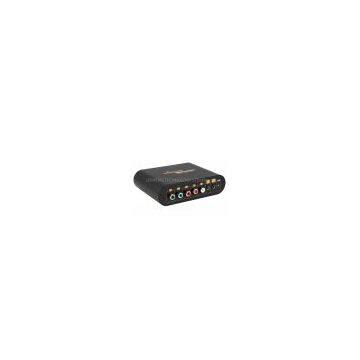
This product converts Component video to VGA, allowing connection of X-Box, Wii, Apple TV, Vudu Box, or Netflix Roku Player to a computer monitor, projector, or other display that supports VGA. It is plug and play and with portable size.
-Input: 1 X VGA, 1 X Component Video (Y-Pb-Pr), 1 X Stereo Audio;
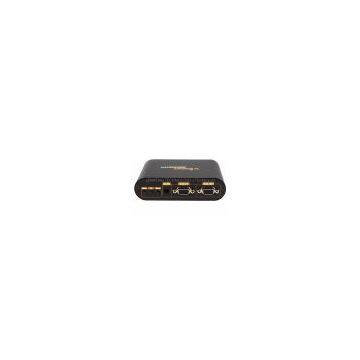
-Output: 1 X VGA, 1 X Audio;
-Output Resolution is optional. Select on the OSD menu;
-VGA Resolution: 640x480; 800x600; 1024x768; 1440x900; 1400x1050, 1600x1200; 1680x1050; 1920x1200; 1280x768;
-Component Video Resolution supported: 480i, 576i, 480p, 576p, 720p, 1080i, 1080p(50Hz/60Hz);
-Brightness, contrast, saturation, hue are adjustable;
-Both PC and MAC Computer are supported;
-Portable Size:12.8x9.4Cmx3.4(W) cm;
-Power adaptor: DC5V/1A.
Note: LENKENG is capable of providing OEM & ODM service as per customer design.
|
Item |
Spec. |
| (1)Y-Pb-Pr | To connect Y-Pb-Pr interface of the input device |
| (2) L/R | Stereo Audio Input |
| (3)Audio Input | Connect Audio from PC |
| (4)Audio Output: | Connect sound box |
| (5)LED | Red LED: PC Host input; Green LED: Component Video input |
| (6)Menu/Up/Down | Function Key |
| (7)DC/5V/1A | Connect power supply |
| (8)VGA-IN | Connect PC host |
| (9)VGA-OUT | Connect PC Monitor or LCD |
|
Item |
Spec. |
| (1)MENU |
- Click it to enter into OSD menu; - Press it and hold on for 3 seconds: Switch between VGA and Component video input; - Press it and hold on for 10 seconds: Default setting (Output resolution: 1024x768) |
| (2)UP |
-Under OSD Menu, press it to select different items of function; -Under the menu of adjusting brightness, contrast, saturation, hue adjustment, press it to increase the value; -Under the menu of resolution setting, click it to select output resolution; -OSD menu is closed, click it to select 4:3, 16:9 or full screen display modes |
| (3)DOWN |
- Under OSD menu, click it to select different item of functions; - Under the menu brightness, contrast, saturation, hue adjustment, click it to decrease the value; - Under the menu of resolution setting, click it to select output resolution |
|
Item
|
Qty
|
Pic
|
|
YPbPr cable
|
1 pcs
|
|
|
Audio cable
|
1 pcs
|
|
|
Power Supplier
|
1 pcs
|
|
|
User manual
|
1 pcs
|
|
|
Package Box
|
1 pcs
|
|
Package Info:
| Weight (KG) | Dimension (LxWxH cm) | |
| Product | 0.27 | 12.7X10.6X3.5 |
| Gift Box (1pcs with accessories and gift box) | 0.62 | 25X17.5X7 |
| Carton Box (20pcs) | 15 | 51X39X39 |

Send Inquiry to This Supplier

You May Also Like
-
for PSP Replacement CoverNegotiableMOQ: 10 Pieces
-
7 IN 1 GAMESUS$ 3 - 6MOQ: 1000 Sets
-
Original New Game Console for 3ds xl Game MachineUS$ 99 - 105MOQ: 5 Pieces
-
Handheld Digital Mini Game With BatteryUS$ 0.5 - 1.2MOQ: 5000 Pieces
-
Game Console M88 Support 128G HD TV Game Players Family Retro Video Game Player M88 Stick 4K VideoNegotiableMOQ: 20 Pieces
-
Retro Game Console Gaming Controllers Consoles Players HD Portable Mini Handheld Video TV Games ControllerUS$ 4.85 - 4.85MOQ: 1 Piece
-
5.5 Inch Displays Android 13 RK3588s 8+256GB Handheld Game ConsoleUS$ 299MOQ: 1 Piece
-
K50 Portable Video Games Consoles Retro 500 In 1 Multifunction Handheld Game PlayerUS$ 6.75 - 7.33MOQ: 10 Pieces
-
Hot Selling Double Game ConsoleNegotiableMOQ: 1
-
Recreational MachinesNegotiableMOQ: 100 Bags


